Fabric has become one of the most popular modloaders for Minecraft players who want a lightweight, flexible way to customise their game. Whether you fancy adding a handful of quality-of-life tweaks or building an elaborate modded experience, getting Fabric set up correctly on version 1.20.4 is the first step. This guide walks through the entire process, from downloading the installer to troubleshooting the odd hiccup along the way, so you can get back to playing as quickly as possible.
What to know
- Fabric is a popular, lightweight, and flexible modloader that allows players to customize their Minecraft experience.
- The installation process begins by downloading the correct installer from the official Fabric website, ensuring it matches the specific version of Minecraft, such as 1.20.4.
- Users must ensure they have the correct Java version installed on their machine for the Fabric loader to function properly.
- After installation, players must select the new Fabric profile within the Minecraft Launcher to boot the game with mod support enabled.
- The Fabric API is a necessary component for most mods and must be placed in the automatically generated 'mods' folder within the Minecraft directory.
- Advanced users can utilize third-party tools like MultiMC to manage multiple, isolated instances of Minecraft with different mod configurations.
- The official Fabric documentation provides comprehensive troubleshooting resources to help resolve crashes, mod conflicts, and other common setup issues.
Getting Started: Downloading and Installing Fabric for Minecraft 1.20.4
Before diving into mods, you need the proper foundations in place. The official Fabric Documentation is the most reliable place to start, as it's kept up to date with the latest changes and supports multiple languages, meaning players from all over the world can follow along in their preferred tongue. It's worth noting that this resource is not an official Minecraft website, but rather a community-maintained hub released under a Creative Commons licence, which means the information is freely shared and regularly improved by contributors.
Obtaining the Fabric Installer from the Official Website
The very first task is heading to the Fabric website and grabbing the installer. Navigation on the site is straightforward, with links to Home, Contribute, Code, and various Fabric API versions clearly laid out. Once you've found the installer, you'll notice that Fabric supports a wide range of Minecraft versions, including newer builds like 26.2 and 26.1.2, alongside older favourites such as 1.21.11, 1.21.1 and, of course, 1.20.4. Selecting the correct version matters enormously, since installing the wrong build can lead to compatibility headaches further down the line.
Verifying Your Java Version and Running the Installation Process
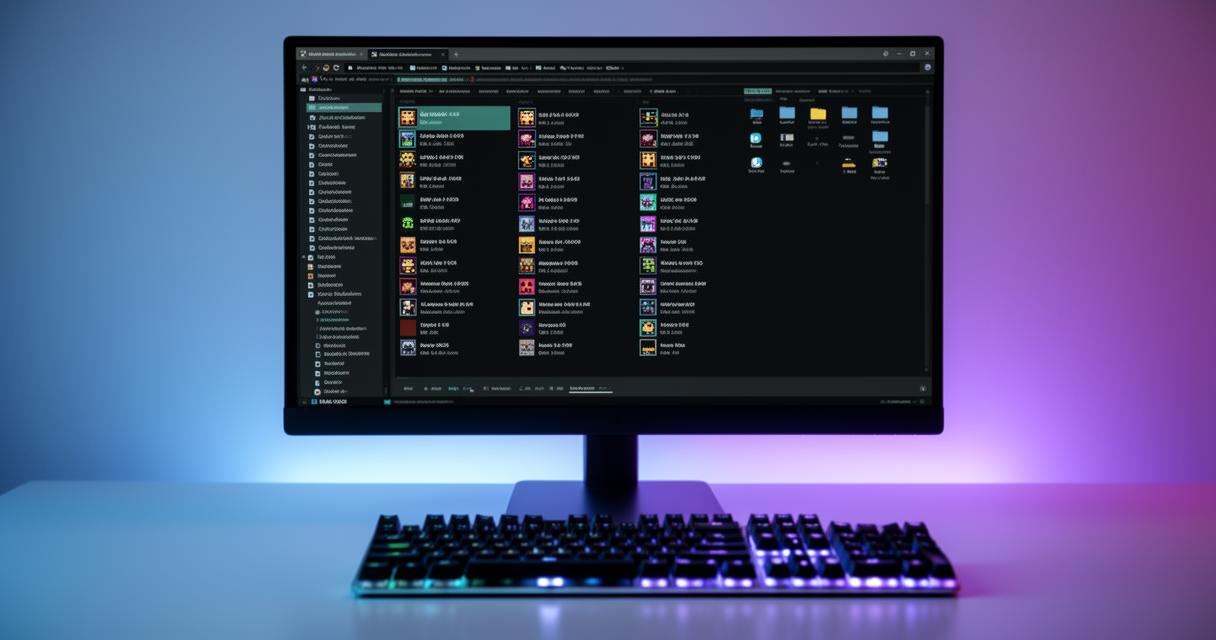
Before running anything, it's essential to check that your machine has the correct Java installation, as Fabric relies on it to function properly. The documentation includes a dedicated section on installing Java, which is handy if you've never had to deal with this before. Once Java is sorted, run the Fabric installer, choose 1.20.4 from the version list, and hit install. The installation guide provided by Fabric is refreshingly simple and avoids unnecessary jargon, making it accessible even for players who have never touched a modloader before.
Setting up your minecraft launcher and installing fabric mods
With Fabric installed, attention turns to the Minecraft Launcher itself. It's worth mentioning that this particular guide applies specifically to the official Minecraft Launcher, so if you're using a third-party alternative, some steps might look slightly different.
Selecting and launching your new fabric profile
Opening the launcher, you should see a brand-new profile has appeared, typically labelled with the Fabric version and the Minecraft build you selected during installation. Simply choose this profile before pressing play, and the game will boot up using the Fabric loader rather than the vanilla setup. This distinction matters because mods built for Fabric won't run under the standard launcher configuration.
Adding Fabric API and Compatible Mods to Your Mods Folder
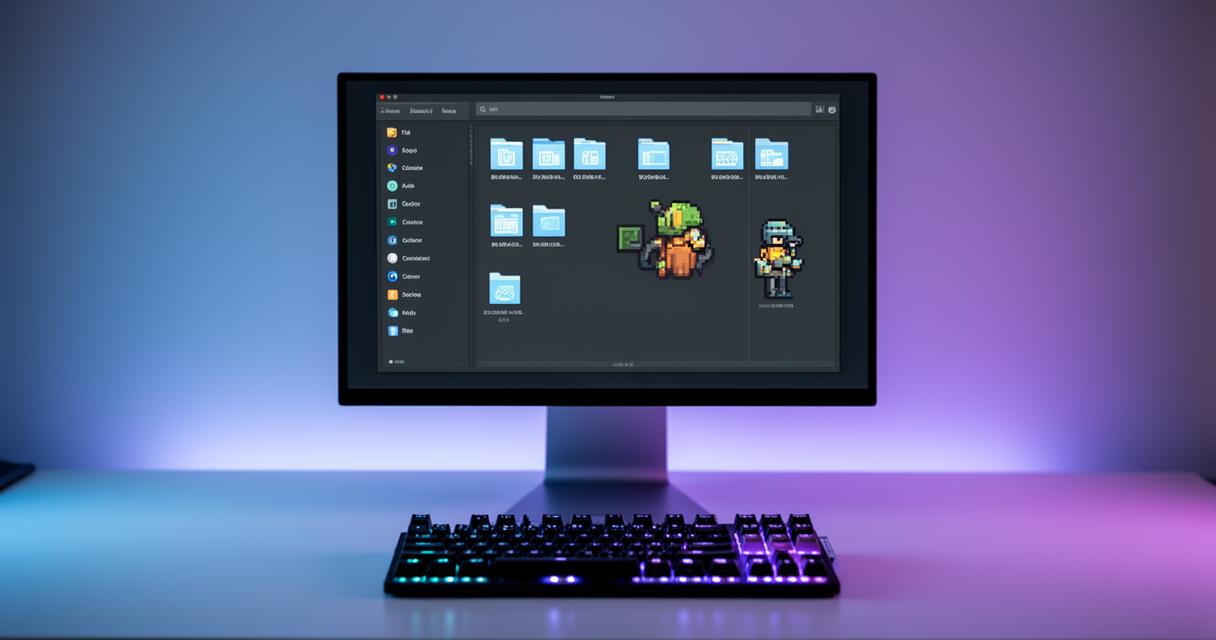
Most mods designed for Fabric require the Fabric API to function, so this should be your first download after the loader itself is in place. Once you've got that file, along with any other mods you fancy trying, they all need to be placed into the mods folder found within your Minecraft directory. This folder is created automatically the first time you launch a Fabric profile, so don't worry if it wasn't there before. Dropping the correct files into this location is really the crux of the whole modding process, and getting it right means smoother sessions later on.
Advanced configuration: using multimc and optimising your fabric experience
For players juggling several mod packs or Minecraft versions at once, relying solely on the official launcher can get messy rather quickly. This is where alternative tools come into their own, offering a cleaner way to keep everything organised.
Managing Multiple Instances with MultiMC for Better Organisation
MultiMC is a popular choice among seasoned players precisely because it allows multiple, isolated instances of Minecraft to exist side by side. Rather than swapping mods in and out of a single mods folder every time you want to switch setups, MultiMC lets you maintain entirely separate configurations, each with its own version of Fabric, its own mods, and its own settings. This is particularly useful if you're testing different combinations or maintaining both a heavily modded world and a more vanilla-friendly one.
Launching minecraft and troubleshooting common fabric issues
Once your setup, whether through the official launcher or MultiMC, is complete, launching the game should feel just like before, only now with your chosen mods active. That said, issues do crop up occasionally, and thankfully the Fabric documentation includes a thorough troubleshooting section covering everything from crashes to mod conflicts. Keeping an eye on Fabric updates is also wise, since developers frequently patch bugs and improve compatibility with newer Minecraft versions. If something doesn't load correctly, checking that your mods, Fabric API, and Minecraft version all align is usually the quickest way to resolve the problem. With patience and a bit of trial and error, most issues are sorted within minutes, leaving you free to enjoy a fully customised Minecraft experience built exactly the way you want it.