Expanding the storage on your smartphone doesn't have to mean deleting cherished photos or beloved apps. A humble memory card can transform a device that's constantly nagging you about full storage into one with room to breathe. Whether you've just picked up a new handset or you're trying to squeeze more life out of an older model, learning how to set your SD card as the default storage location is one of the most useful bits of tech know-how you can pick up. This guide walks through everything from the bewildering array of card formats to the actual settings you'll need to tweak on your device.
In short
- Understanding the differences between SD, SDHC, and SDXC formats is essential to ensure your smartphone is compatible with your memory card.
- Selecting a card with the appropriate speed class is crucial for tasks like 4K video recording and smooth app performance.
- Configuring an SD card as internal storage on Android allows the system to save apps and data directly to the card by default.
- Samsung devices offer specific settings within the Apps menu to migrate data and manage storage for individual applications effectively.
- Formatting your SD card through your smartphone settings helps optimize compatibility and improves overall data read/write performance.
- Always perform a complete data backup before formatting a card, as the process permanently deletes all existing files.
Understanding SD Card Formats and Classes: Choosing the Right Card for Your Device
Before you even think about slotting a card into your phone, it helps to understand what you're actually buying. Wander into any electronics shop, or browse online through product categories for accessories, and you'll be faced with a confusing wall of acronyms and speed ratings. Getting this right from the start saves a lot of hassle further down the line.
Different sd card formats: sd, sdhc, and sdxc explained
The three main families you'll encounter are SD, SDHC, and SDXC. Standard SD cards are the oldest of the bunch and typically top out at a modest capacity, making them largely obsolete for modern phones with high-resolution cameras and hefty apps. SDHC, which stands for High Capacity, pushed things further and became the norm for a good while. Nowadays, most smartphones that still support removable storage are designed around SDXC cards, which stands for Extended Capacity and allows for vastly larger amounts of storage, often stretching into the terabyte range. It's worth double-checking your phone's specifications before purchasing, as not all phone models support SD cards at all, and some older devices may only be compatible with SDHC rather than the newer SDXC standard.
Speed Classes and Performance Ratings: What the Numbers Really Mean
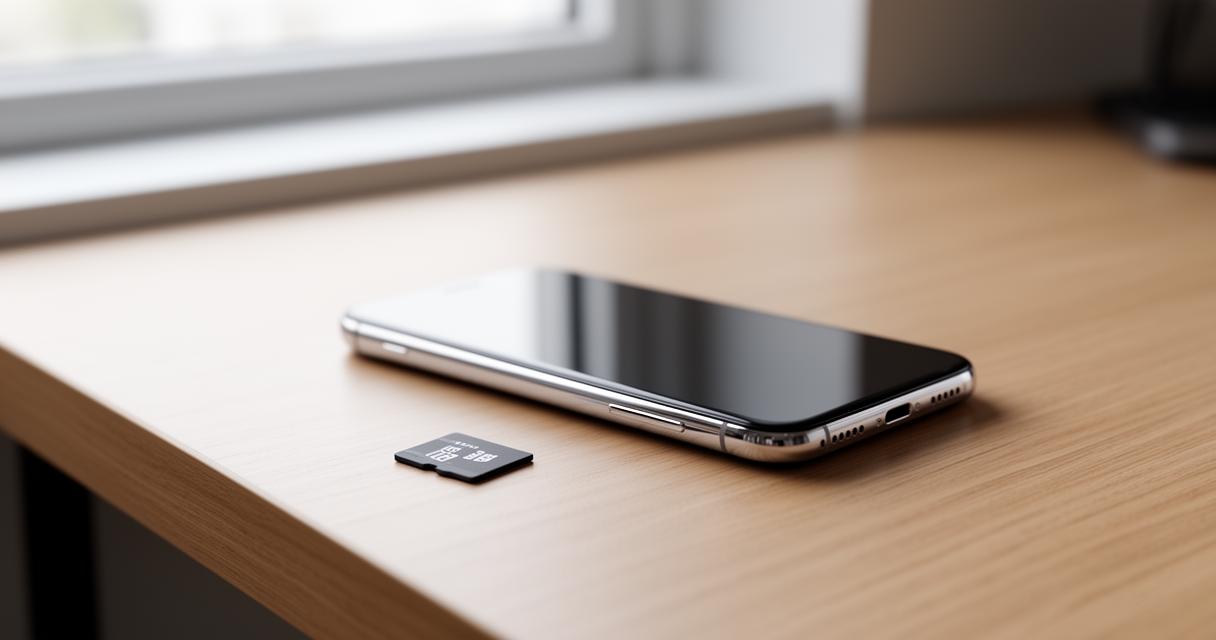
Alongside capacity, you'll spot a cluster of numbers and symbols printed on the card itself, and these relate to how quickly data can be read from and written to it. A Class 10 rating, for instance, guarantees a minimum sustained write speed suitable for recording video without stuttering. Then there are the UHS speed classes, often shown as a number inside a U-shaped symbol, which indicate even faster performance for demanding tasks like 4K recording. For everyday use such as storing music, photos, and app data, a mid-range card will usually suffice, but if you plan on shooting a lot of video or running games directly from the card, it's worth investing in a higher-rated one to avoid frustrating lag.
Configuring Your Android Smartphone to Use SD Card as Default Storage
Once you've got the right card, the real magic happens in your phone's settings menu. Setting the SD card as default storage allows applications to save data directly to the card without needing to manually select it every single time, which is a genuine time-saver once it's properly configured.
Step-by-Step Guide to Changing Default Storage Settings on Android Devices
On most Android phones, you'll want to head into the settings app and look for a section labelled storage or device care. From there, you should see your internal storage listed alongside the SD card, assuming it's been inserted and recognised correctly. Tapping on the card usually brings up an option to format it, and Android will often ask whether you'd like to use it as portable storage or internal storage. Choosing the latter integrates the card more deeply into the phone's system, allowing apps and their data to be stored there by default. After this initial setup, you can generally go back into the storage settings and manually choose the SD card as your preferred location for new files, photos, and downloads going forward.
Managing Application Data and File Storage Preferences on Samsung Devices
Samsung devices, which remain hugely popular across the United Kingdom and beyond, have their own particular way of handling this. Whether you own a flagship like the Galaxy S26 Ultra, a foldable such as the Galaxy Z Fold8, or a tablet from the Galaxy Tab S11 Series, the process tends to follow a similar pattern. For Samsung devices, navigate to the Apps section in settings to adjust where data is saved, selecting individual applications and choosing storage from their internal menu to move data across. Some applications may allow you to select storage options directly in their own settings, which can be a particularly quick way to manage space without digging through the main system menu. This is especially handy for photo-heavy apps or games with large data files, where shifting things to the card can free up considerable room on the internal drive.
Formatting and Optimising Your SD Card for Maximum Performance
Getting the most out of your card isn't just about the initial setup. A bit of ongoing maintenance ensures everything continues running smoothly, particularly if you've been using the same card for a long stretch of time or you're moving it between different devices.
When and How to Format Your SD Card: Ensuring Compatibility and Efficiency
Formatting the SD card may be necessary to ensure compatibility and efficiency, and this can generally be done through the settings under storage on your phone. This is particularly important if you've previously used the card in a camera, a tablet, or another gadget, as different devices sometimes format cards using different file systems. A fresh format essentially wipes the slate clean and prepares the card specifically for your smartphone, often resulting in noticeably snappier performance. It's a straightforward process, but one that shouldn't be rushed into without a bit of preparation beforehand.
Essential backup strategies before formatting to prevent data loss
Remember to back up any important data before formatting to avoid loss of files, as this step is irreversible once completed. Take the time to transfer photos, videos, and documents either to a computer, a cloud service, or your phone's internal storage before proceeding. Many people find it useful to connect their device to a laptop and drag files across manually, while others prefer using built-in backup tools that handle the transfer automatically. If you ever run into trouble during this process, whether it's a card that won't format properly or files that seem to have vanished, it's worth reaching out to customer support, including live chat services, for troubleshooting help. Samsung, for example, offers dedicated support channels covering everything from repairs and warranty queries to step-by-step troubleshooting for storage issues, making it easier to resolve problems without unnecessary stress.
Getting your SD card properly set up as default storage genuinely changes how you use your phone day to day, freeing up space and reducing those irritating low-storage warnings. With the right card, sensible formatting, and a few careful settings adjustments, you'll find your device running far more smoothly, leaving you free to focus on capturing memories and using your favourite apps rather than constantly managing storage.